Personalization
Add favorites
Please note: The bookmark button on individual statistic pages is temporarily unavailable while we improve the statistic page experience. You can still manage your old favorite content, statistics, reports, and forecasts from your Favorites page.
Our platform lets you save statistics and forecasts as favorites so you can easily locate them again later.
How to add a statistic to your favorites:
Bookmark a statistic as a favorite
Click the star button on a statistic page.

A window appears with a checkmark next to the Favorites folder. This shows that you have added the statistic to your favorites. In this window, you can also add the statistic to another collection by clicking the name of the folder.
If you would like to remove the statistic from a collection or from favorites, click the name of the folder again. Once the statistic is removed from the folder, you will see a red cross next to the folder name.
View favorites
There are two ways to access your saved statistics.
Option 1:
Hover over the star icon in the top menu bar.

Option 2:
Or select Manage Favorites in My Account.

Here you can organize them using Collections and Chapters. If you prefer to keep it simple, you can keep them in the Favorites folder.
The Favorites folder is automatically open when you access the page. On the right, you can see the contents of the currently selected Favorites folder.
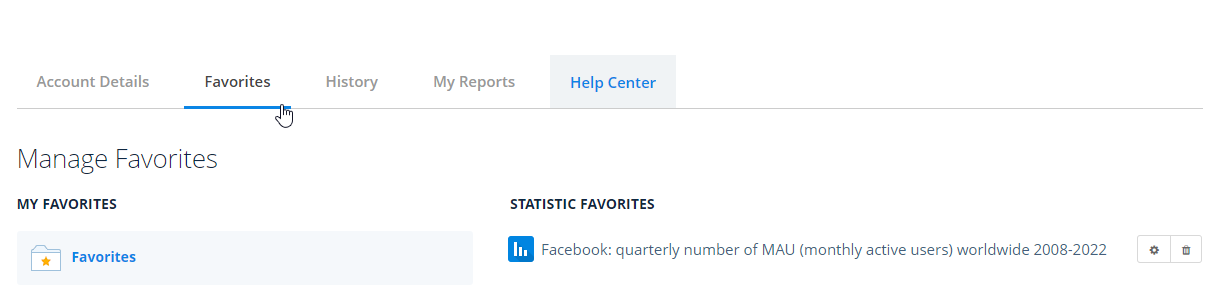
Click the bin symbol at the right edge of the entry to delete the statistic from your folder. Use the gearwheel to add the statistic to one of your collections.
TIP: Learn more about how to organize your Favorites using Collections.